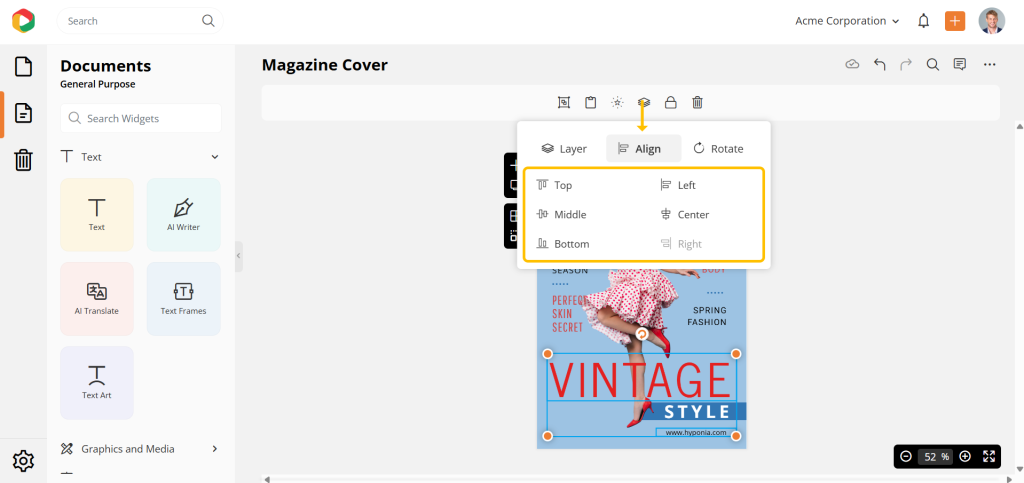
You can align widgets to the page or block, or align multiple widgets relative to each other for a clean and organized layout.
Align to page or block
You can align a single widget or grouped widget to the page or block.
Follow these steps:
Step 1:
Select the widget or grouped widget you want to align.
Step 2:
On the contextual toolbar, click Arrange.
Under Align, choose one of the following options:
- Top to align to the top of the page or block
- Middle to align to the vertical center
- Bottom to align to the bottom
- Left to align to the left edge
- Center to align to the horizontal center
- Right to align to the right edge
Align with other widgets
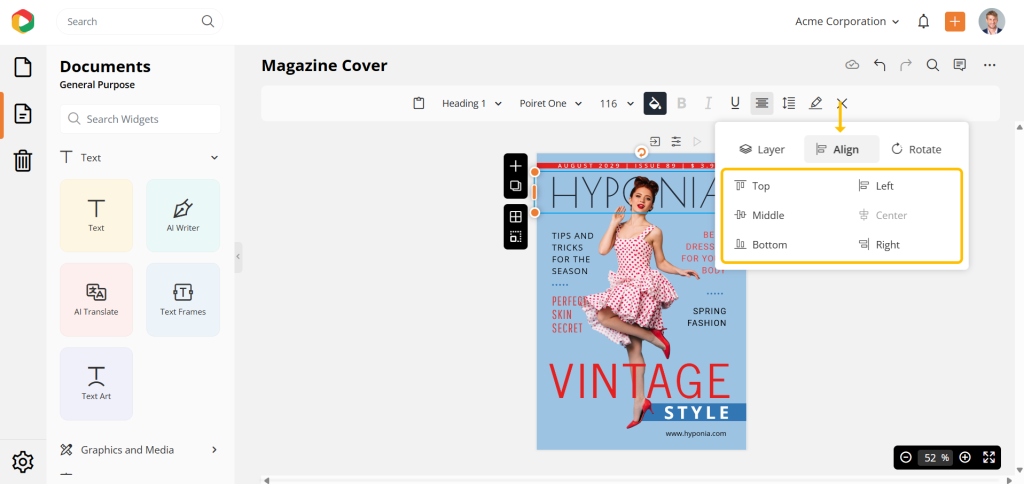
When multiple widgets are selected, you can align them relative to each other.
Follow these steps:
Step 1:
Select multiple widgets:
- Drag your cursor over the widgets, or
- Hold the Shift key and click to select additional widgets
Step 2:
On the contextual toolbar, click Arrange.
Under Align, choose one of the following options:
- Top to align all widgets to the top
- Middle to align all widgets to the center vertically
- Bottom to align all widgets to the bottom
- Left to align all widgets to the left
- Center to align all widgets to the center horizontally
- Right to align all widgets to the right